The OpenAudio HOLOWHAS series amplifiers Control4 driver (including HOLOWHAS, HOLOWHAS Ultra, HOLOWHAS Plus, HOLOWHAS Max, HOLOWHAS Ultra-GC, HOLOWHAS Plus-GC) are professional-grade audio devices that can be seamlessly integrated with the Control4 smart home system. This guide details the entire process of installing, configuring, and troubleshooting the Control4 driver, ensuring stable communication and smooth operation between the Control4 system and the amplifier.
1. Preface: Core Explanation of the Driver
The Control4 driver discussed in this guide is a dedicated .c4z driver designed for the OpenAudio HOLOWHAS series amplifiers. Its core function is to establish communication between the Control4 system and the HOLOWHAS amplifier, enabling remote control of the amplifier (such as power on/off, volume adjustment, and input switching) through the Control4 system.
OpenAudio Control4
🔑 Key Note:
The driver is compatible with all HOLOWHAS models: HOLOWHAS, HOLOWHAS Ultra, HOLOWHAS Plus, HOLOWHAS Max, HOLOWHAS Ultra-GC, HOLOWHAS Plus-GC. It supports all versions of Control4 (4.0 and above) and requires no additional third-party plugins.
2. Prerequisites
Before beginning the installation process, ensure you have the following:
- Control4 Composer software (latest version recommended to avoid compatibility issues)
- Control4 Director (host device) in normal operation
- OpenAudio HOLOWHAS series amplifier (any model) powered on and connected to the same local area network (LAN) as the Control4 host
- Driver file: .c4z format (match the corresponding HOLOWHAS model)
- IP address of the HOLOWHAS amplifier (obtained from the amplifier’s app UI display or router management interface)
3. Step-by-Step Driver Import Process
The driver import process is the same for all HOLOWHAS models. Follow these steps to import the driver into Control4 Composer:
1. Open Control4 Composer
Launch Control4 Composer and create a new project or open an existing one.
2. Add Driver
Click the top menu bar: Driver → Add Driver.
3. Select Driver File
In the pop-up window, select the downloaded .c4z driver file corresponding to your HOLOWHAS model (ensure the driver matches the amplifier model).
4. Confirm Import
Click Confirm Import. The system will automatically verify compatibility. If the prompt shows “Driver Compatible”, the import is successful.
✅ Success Indicator
When you see “Driver Compatible” message, your driver has been successfully imported and is ready for configuration.
5. Restart Composer
Restart Control4 Composer. The driver will be synchronized to the local driver library, and you can find it in the “Device List” by searching for “OpenAudio” or the HOLOWHAS model name.
4. Step-by-Step Configuration Guide
4.1 Add the Amplifier to the Project
1. Open System Design
Open the System Design interface in Control4 Composer.
2. Search Local Drivers
In the right-side panel, check “Local Drivers” and search for the imported HOLOWHAS driver (e.g., “HOLOWHAS Ultra” or “HOLOWHAS Plus-GC“).
3.Add to Project
Double-click the driver, select the corresponding room (e.g., Living Room, Conference Room), and add it to the project.
4.2 Configure Network and Communication Parameters
1.Select Device Properties
Select the added HOLOWHAS amplifier device in the project tree and enter the Properties panel.
2. Enter IP Address
Fill in the IP address of the HOLOWHAS amplifier (ensure it is in the same LAN as the Control4 host).
⚠️ Important Note
Always verify that the amplifier and Control4 Director are on the same network subnet to ensure stable communication.
3.Configure Port (Model-Specific)
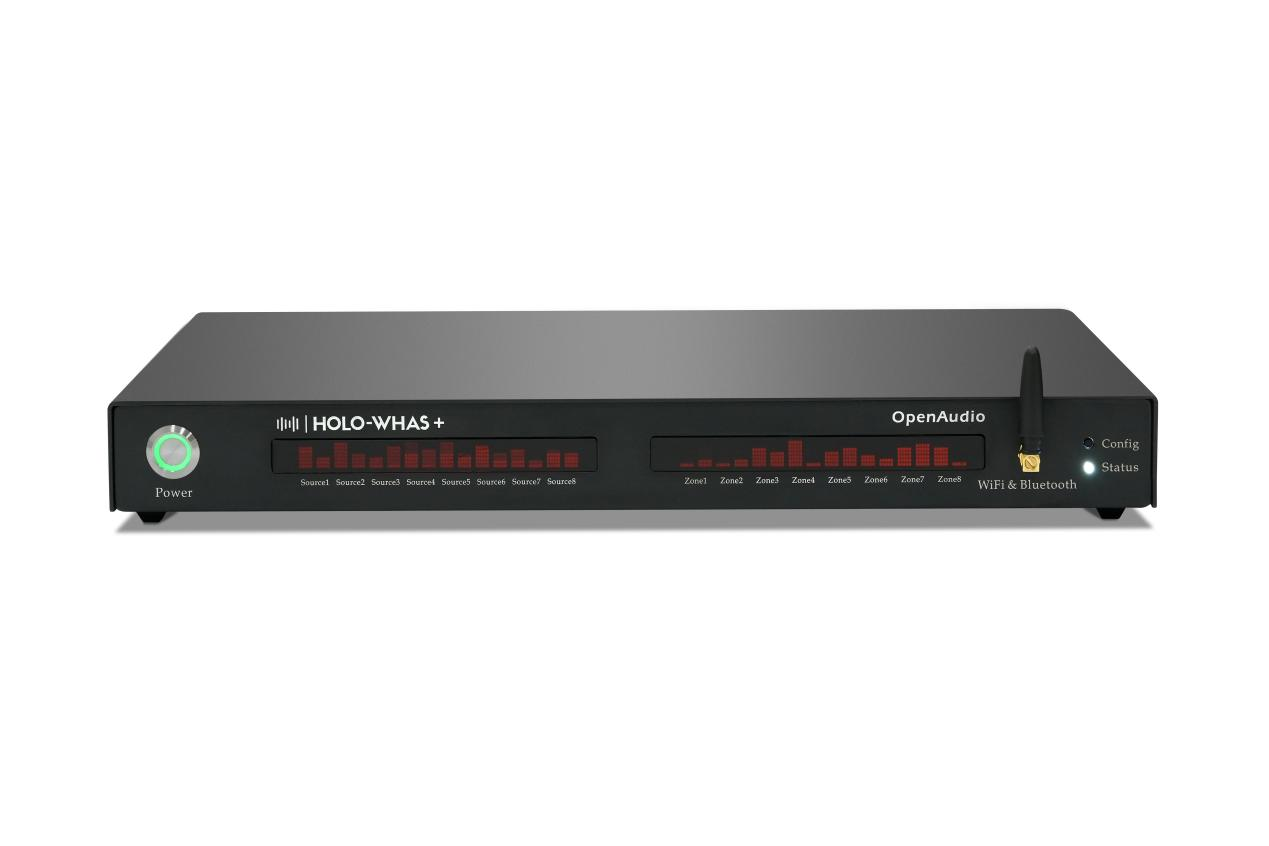
Port configuration varies by model:
- HOLOWHAS, HOLOWHAS Plus, HOLOWHAS Max: Default port (no modification required)
- HOLOWHAS Ultra, HOLOWHAS Ultra-GC: Default port, switch to port 80 if communication fails
- HOLOWHAS Plus-GC: No additional port adjustment needed, ensure smooth communication
HOLOWHAS
Standard model with default port configuration
HOLOWHAS Ultra
High-performance model, port 80 fallback option
HOLOWHAS Plus
Enhanced features with standard port setup
HOLOWHAS Max
Maximum power output model
HOLOWHAS Ultra-GC
Ultra model with GC technology
HOLOWHAS Plus-GC
Plus model with GC enhancement
4. Save Configuration
Save the configuration and confirm that the amplifier is connected to the same LAN as the Control4 host (no IP conflict).
4.3 Test Communication
Right-click the HOLOWHAS device and select Test Communication to verify the connection:
✅ Connected
If “Connected” is displayed, the configuration is successful, and the amplifier can be controlled normally.
❌ Disconnected
If “Disconnected” is displayed, check the IP address, network connection, or port settings and try again.
5. Key Notes for Usage
- Compatibility: The driver is only compatible with OpenAudio HOLOWHAS series amplifiers (HOLOWHAS, HOLOWHAS Ultra, HOLOWHAS Plus, HOLOWHAS Max, HOLOWHAS Ultra-GC, HOLOWHAS Plus-GC) and cannot be used for other brand amplifiers.
- IP Changes: If the amplifier’s IP address changes, re-enter the driver configuration interface to modify the IP and resync the project to ensure normal communication.
- Continuous Operation: After configuration, the Control4 host (Director) will run continuously, and the driver will remain effective without manual intervention.
6. Troubleshooting
Here’s a comprehensive troubleshooting guide for common issues:
| Fault Phenomenon | Troubleshooting Method |
|---|---|
| Failed to import the driver | Re-download the complete .c4z driver file; update Control4 Composer to the latest version |
| No communication with the amplifier | Check if the IP address is correct; ensure the LAN connection is stable; verify the port settings |
| No sound from the amplifier | Check the amplifier power and volume settings; verify the audio input source |
| Driver mismatch | Use the driver corresponding to the HOLOWHAS model; re-import the correct driver |
7. Summary
The key to integrating the OpenAudio HOLOWHAS series amplifiers with the Control4 system is to ensure the driver matches the amplifier model, the network connection is stable, and the IP/port configuration is correct. By following this guide, you can quickly complete the driver import, configuration, and debugging, realizing seamless linkage between the Control4 system and the HOLOWHAS amplifier, and ensuring stable and reliable operation of the entire smart audio system.
🎉 Ready to Get Started?
With proper configuration, your HOLOWHAS amplifier will be fully integrated with your Control4 smart home system, providing exceptional audio control and automation capabilities.
Openaudio website:https://www.openaudio.io/